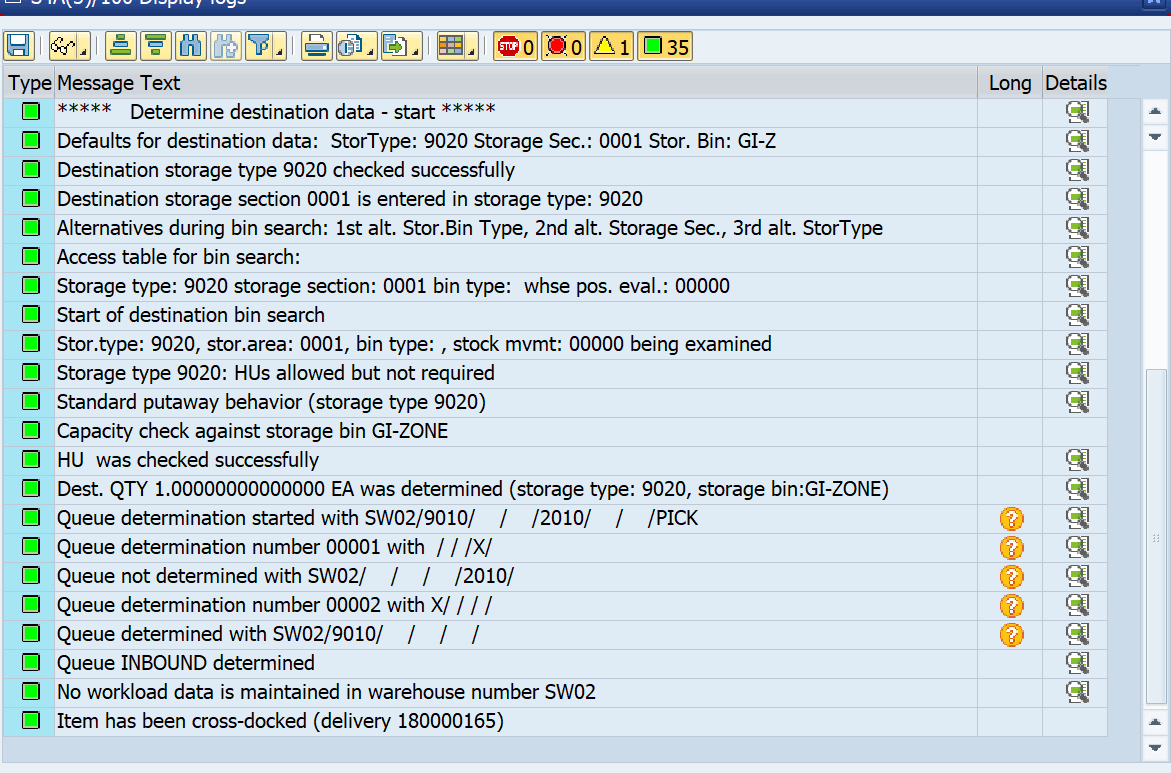
Opportunistic Cross Docking


Types of Opportunistic Deployments
There are two main types of opportunistic deployments:
- Push Deployment
- Pull Deployment
1. Push Deployment
In a Push Deployment, if a sales order for the product is pending, the PUTAWAY process will go directly from GR-Zone to GI-ZONE.
2. Pull Deployment
In a Pull Deployment, if a product is pending for PUTAWAY in the GR-Zone and an outbound request for the same product is made, the system will initiate Picking directly from GR-Zone to GI-ZONE.
Implementing Both Deployments
We will configure both push and pull deployment scenarios.
Step 1: Activate BAdI for Cross-Docking
- Go to SPRO > SCM Extended Warehouse Management > Extended Warehouse Management > Business Add-Ins (BAdIs) for Extended Warehouse Management > Cross-Process Settings > Cross-Docking (CD) > Opportunistic Cross-Docking > EWM-Triggered Opportunistic Cross-Docking.
- Enable:
- EWM-Triggered Opportunistic Cross Docking Inbound

- EWM-Triggered Opportunistic Cross Docking Outbound

- EWM-Triggered Opportunistic Cross Docking Inbound
Step 2: Create Product Group for Cross-Docking
- Navigate to SPRO > SCM Extended Warehouse Management > SCM Basis > Master Data > Product > Product Groups.
- Define:
- Product Group Types

- Product Groups

- Product Group Types
Step 3: Assign Product Groups for EWM-Triggered Opportunistic Cross-Docking
- Go to SPRO > SCM EWM > EWM > Cross Process Settings > Cross Docking > Opportunistic Cross-Docking > Activate EWM-Triggered Opportunistic Cross-Docking.
- Assign the Product Group for both Inbound and Outbound to enable deployment for both Pull and Push scenarios.

Configuring Stock Type Determination
Go to SPRO > SCM EWM > EWM > Cross Process Settings > Stock Determination.
Maintain Stock Determination Groups and configure Stock Determination.

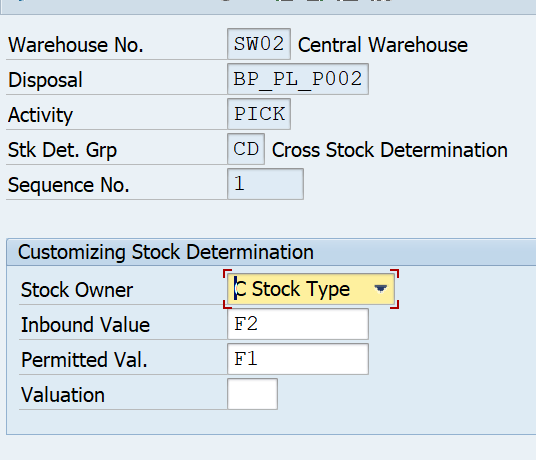
Note: Set the PICK activity to use the Stock Type with permission for F1.
Valuation Note: The valuation quantity from 1 to 100 defines priority, with a higher value indicating a higher priority.
Creating Material for Cross-Dock Checking
- Use transaction MM01.
- In the latest version of S/4HANA, assign the product group in Basic Data 2.
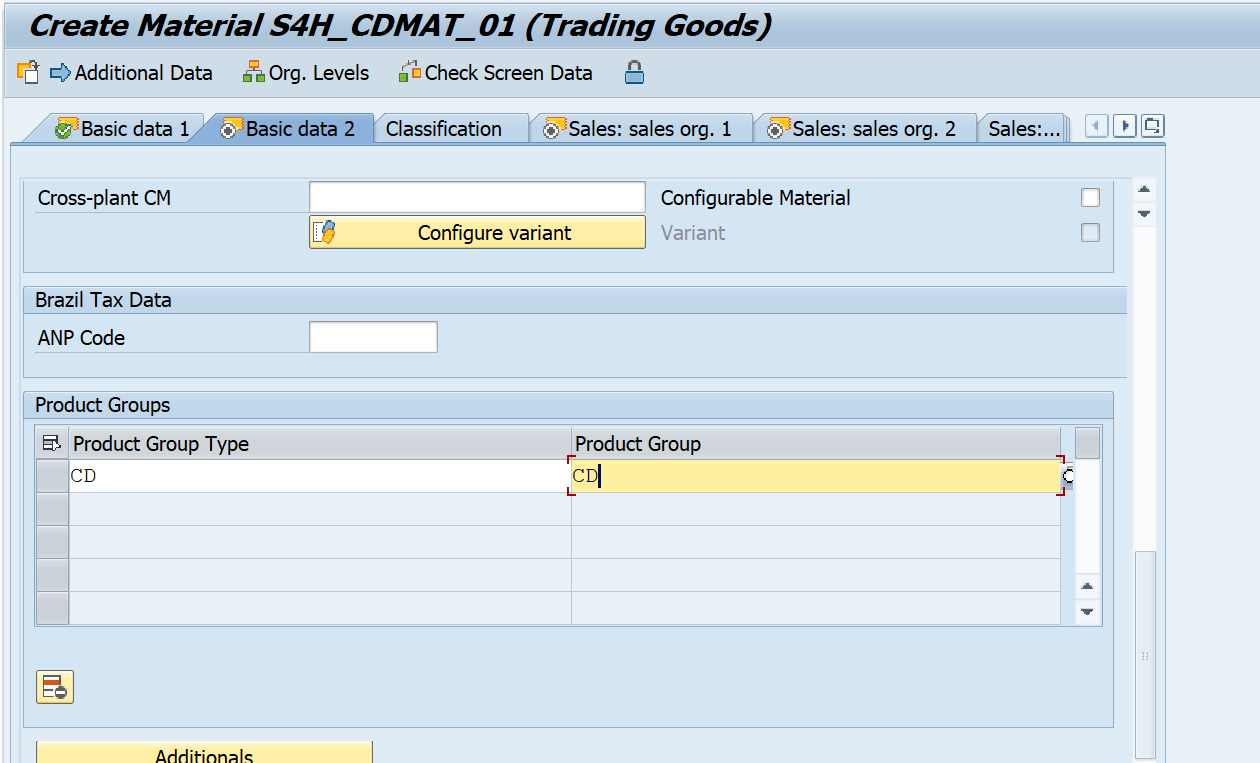
- Created material - S4H_CDMAT_01
- Extend it to Product Master and assign the Stock Determination Indicator in /n/scwm/mat1.
- Created material - S4H_CDMAT_01
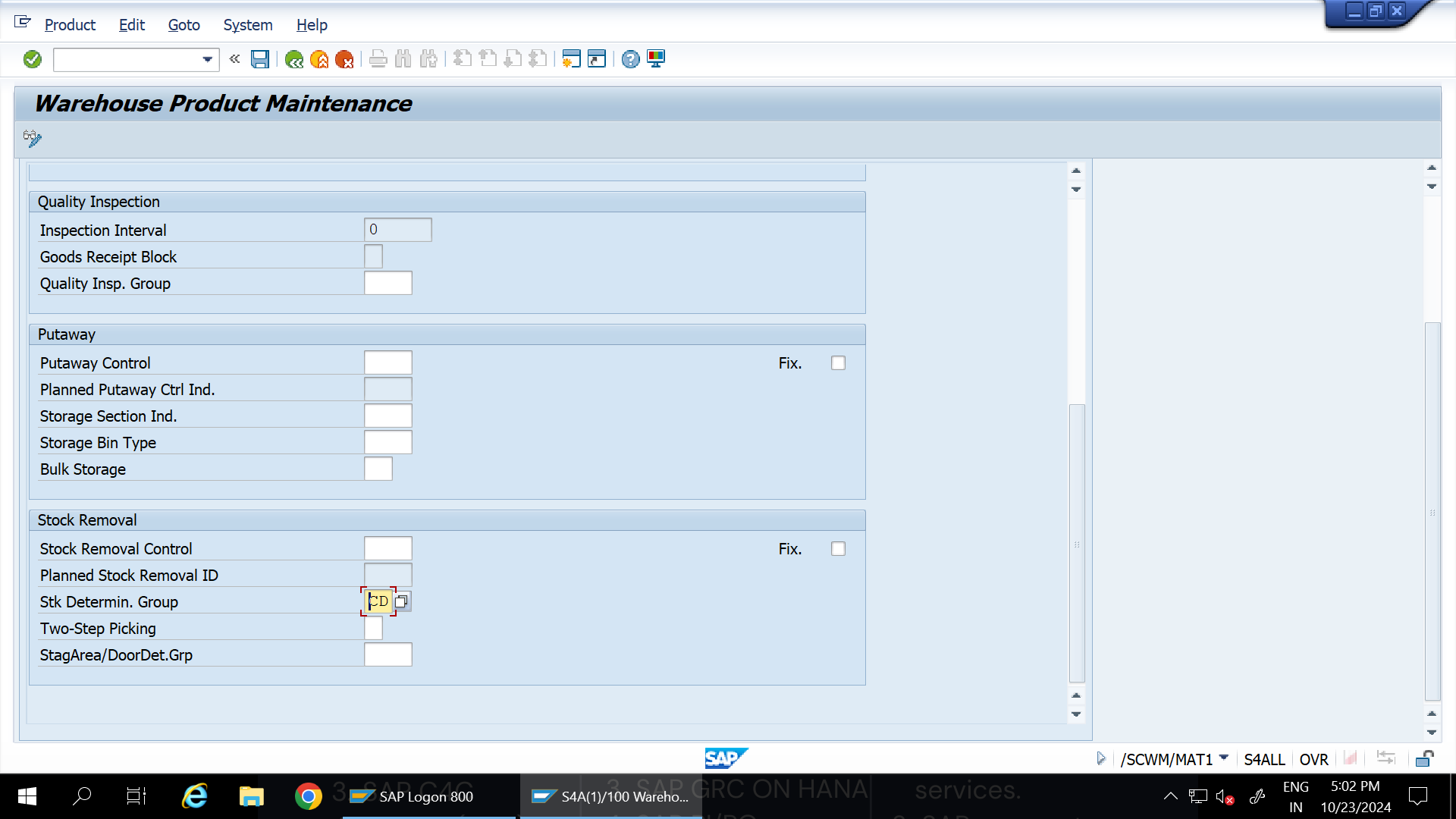
Setting Putaway and Stock Removal Strategies
Define the following for the product:
- PTDI - CD: Determines WPT 1010 and 2010 for OUTB and INB.
- PACI - CDSS: Assigned to STSS with WPT 1010 to search for Storage SHRK for PUTAWAY.
- SRCI - CDSS: Assigned to STSS (CDSS) with WPT 2010, searches for Storage SHR for picking, with FIFO rule.
All settings are assigned in the Product Master for S4H_CDMAT_01.
Creating a Purchase Order (PO)
- Under the regular Putaway Scenario, products are directed to the SHRK bin SHRK-01-01-11 based on the Putaway strategy.
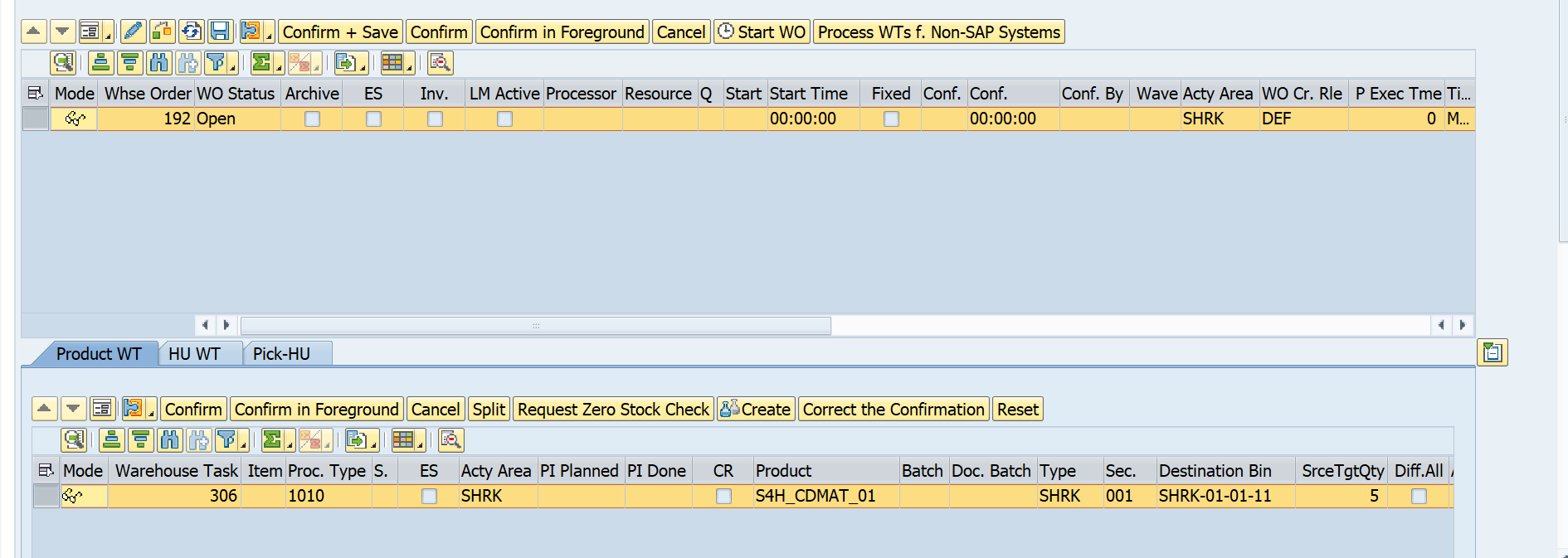
- Now, materials are available in the ST Bin.

Push Scenario Implementation
To set up the Push scenario:
- Create an Outbound Delivery and leave it pending.

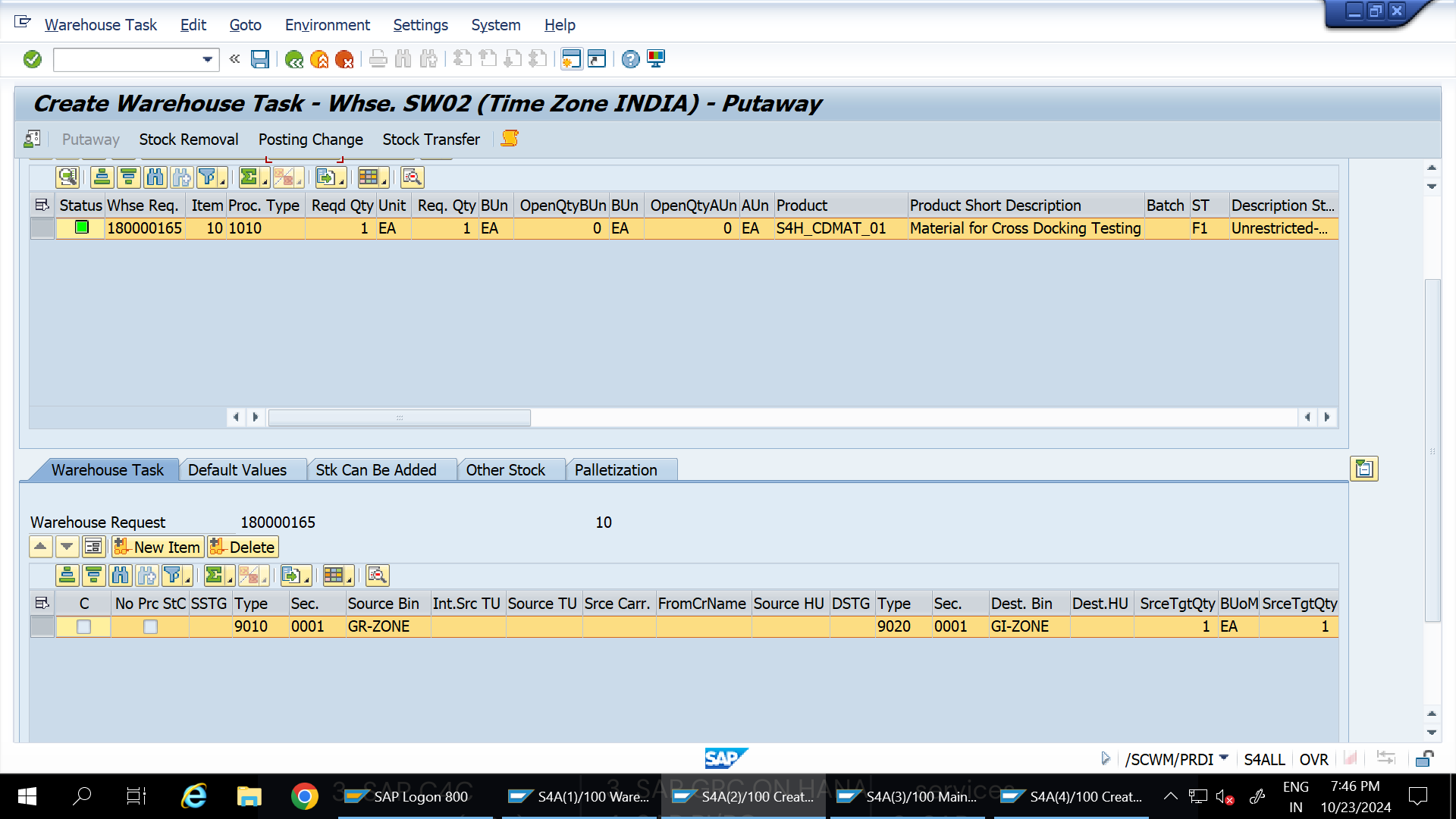
- Perform an inbound delivery and check if the system directs stock from GR-Zone to GI-Zone.
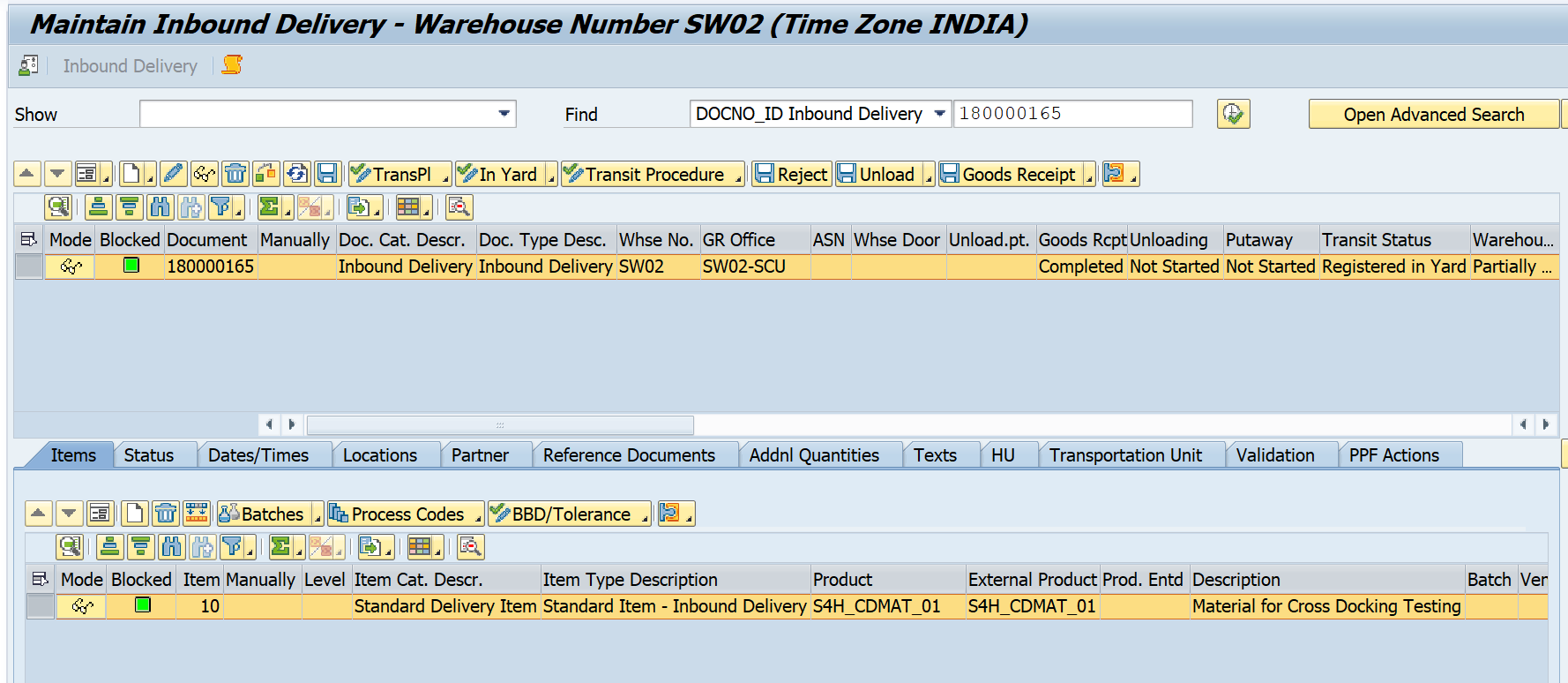
Note: Initially, Because of WPT 1010 bin isn’t determined correctly, had to correct the source bin in WPT 1010
Observing Results
The system should now direct putaway to GI-ZONE directly.
Pull Scenario Implementation
For the Pull scenario:
- With a pending Inbound Delivery in GR-ZONE but without PUTAWAY:
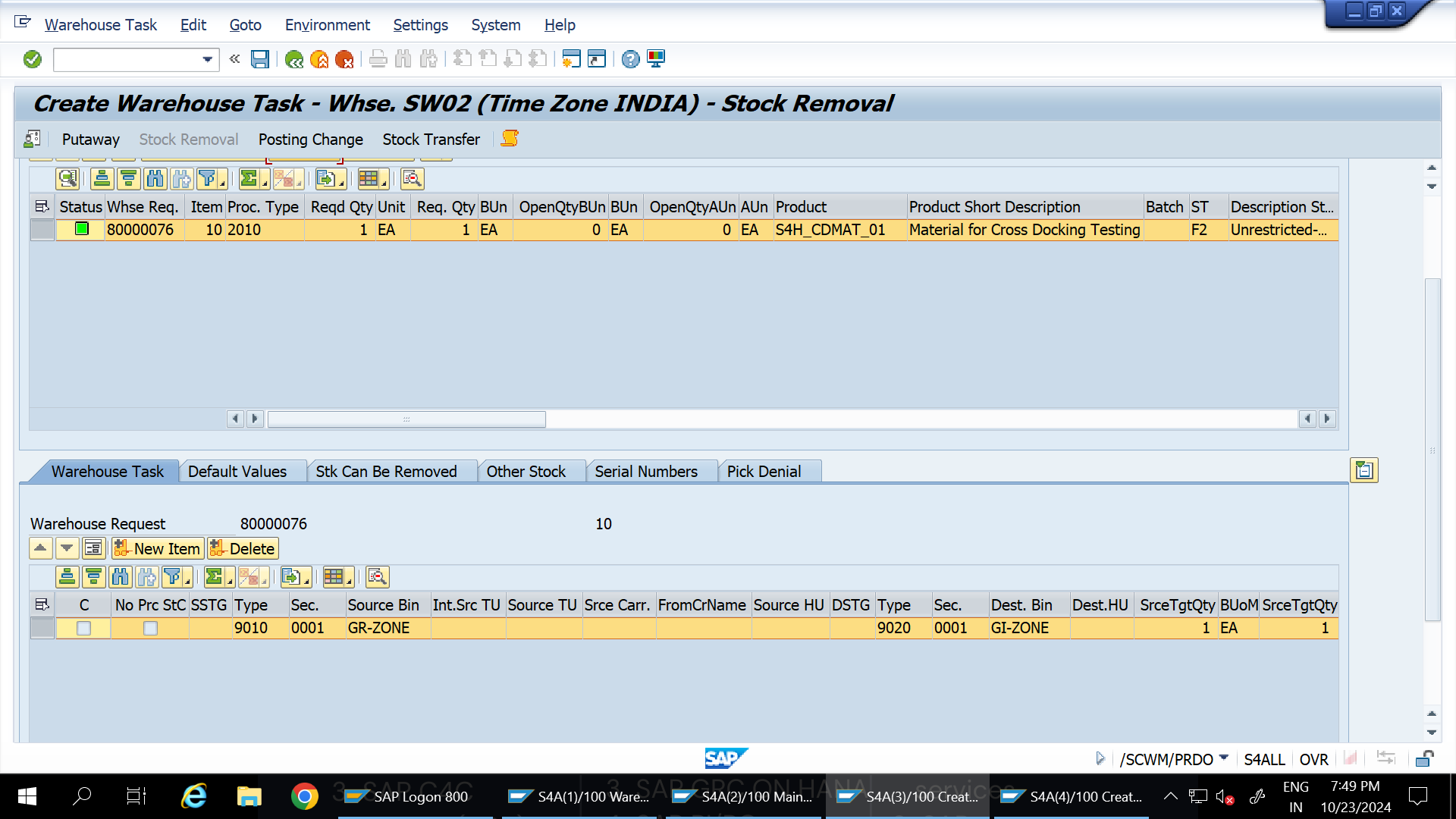
- Initiate a Pick action against the Outbound Delivery and check the Source Storage Bin. The system should prompt GR-ZONE as the source bin.
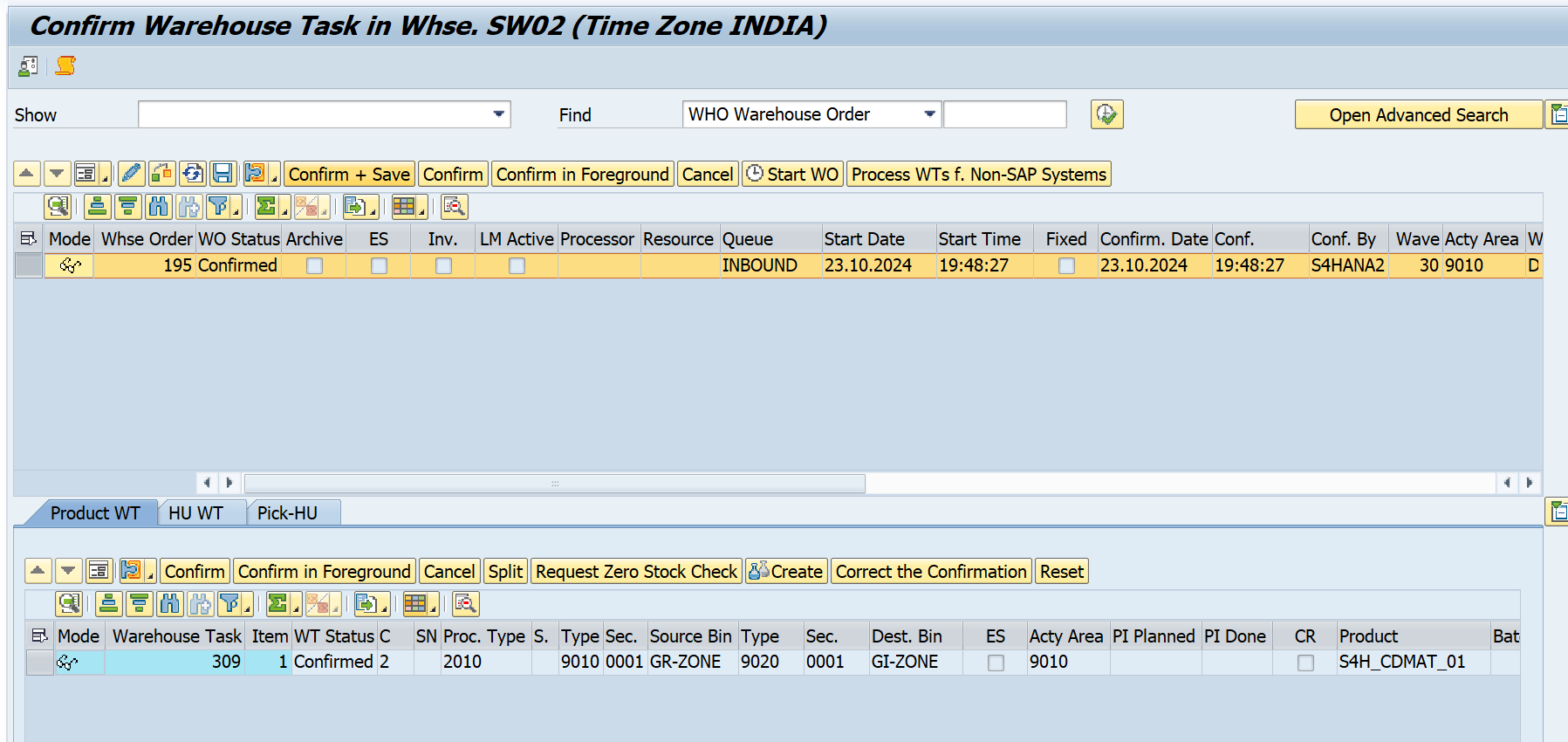
Tip: You can review the log to confirm that items were cross-docked successfully.