This guide provides a detailed configuration tutorial for setting up Cartonization Planning in SAP EWM.
Step 1: Activate BC Sets
To start with Cartonization Planning, activate the following BC sets:
SCPR20 >
/SCWM/CAP_WORK_CENTER_LAYOUT
/SCWM/CAP
/SCWM/PRC_TCP1
Step 2: Create Packaging Materials
Define packaging materials with specific dimensions and weight. Here’s the information for three box types:
Material
Length (cm)
Width (cm)
Height (cm)
Weight (Kg)
Volume (cm³)
HU Type
Small Box
10
10
4.5
0.2
450
BOXE
Medium Box
10
10
6.5
0.3
650
BOXE
Large Box
10
10
8.5
0.4
850
BOXE
Material Codes:
SMALL-BOX
MID-BOX
LARGE-BOX
MM01 -> S4H_SWCL_01, S4H_SWCL_02, S4H_SWCL_03
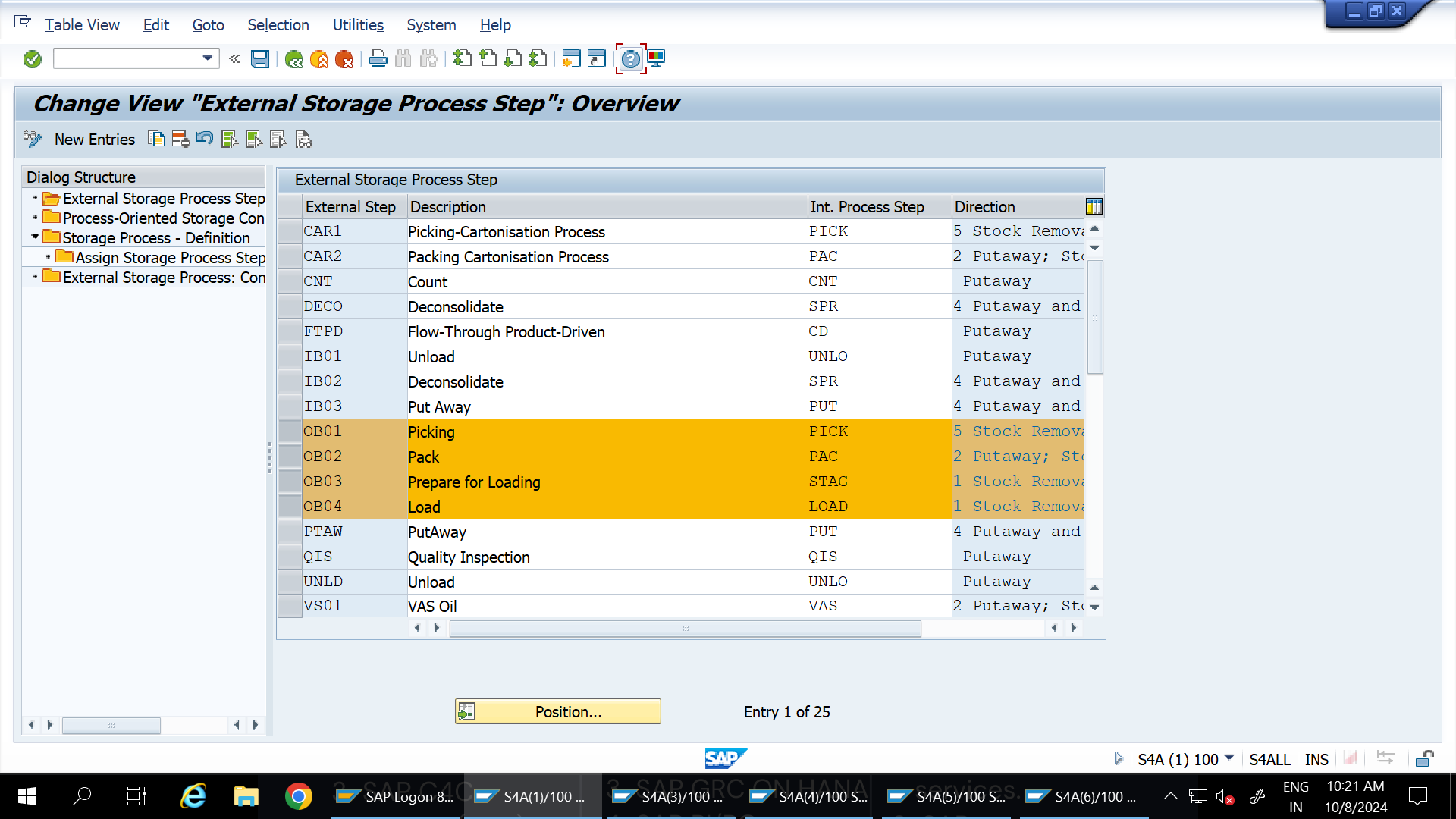
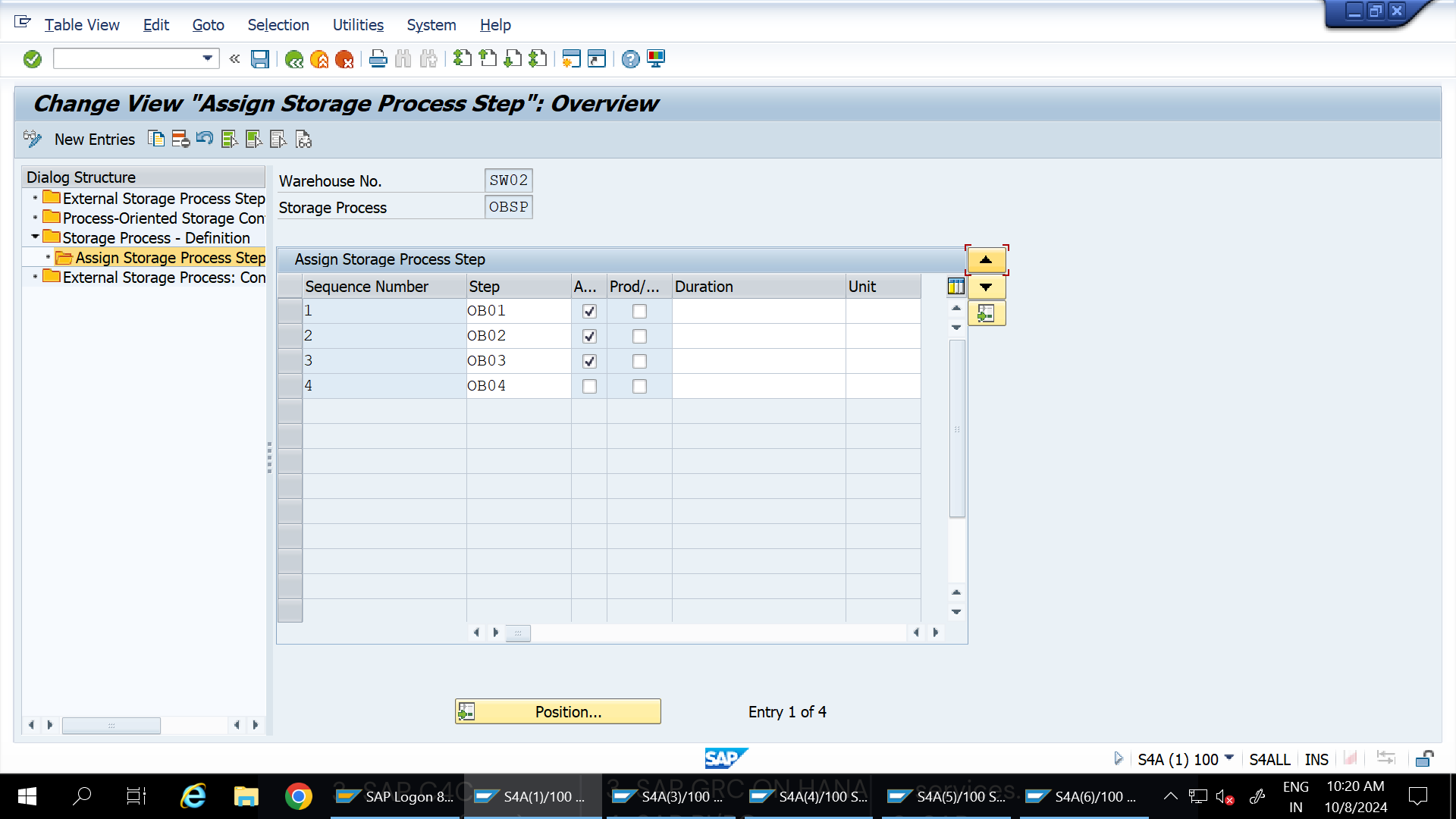
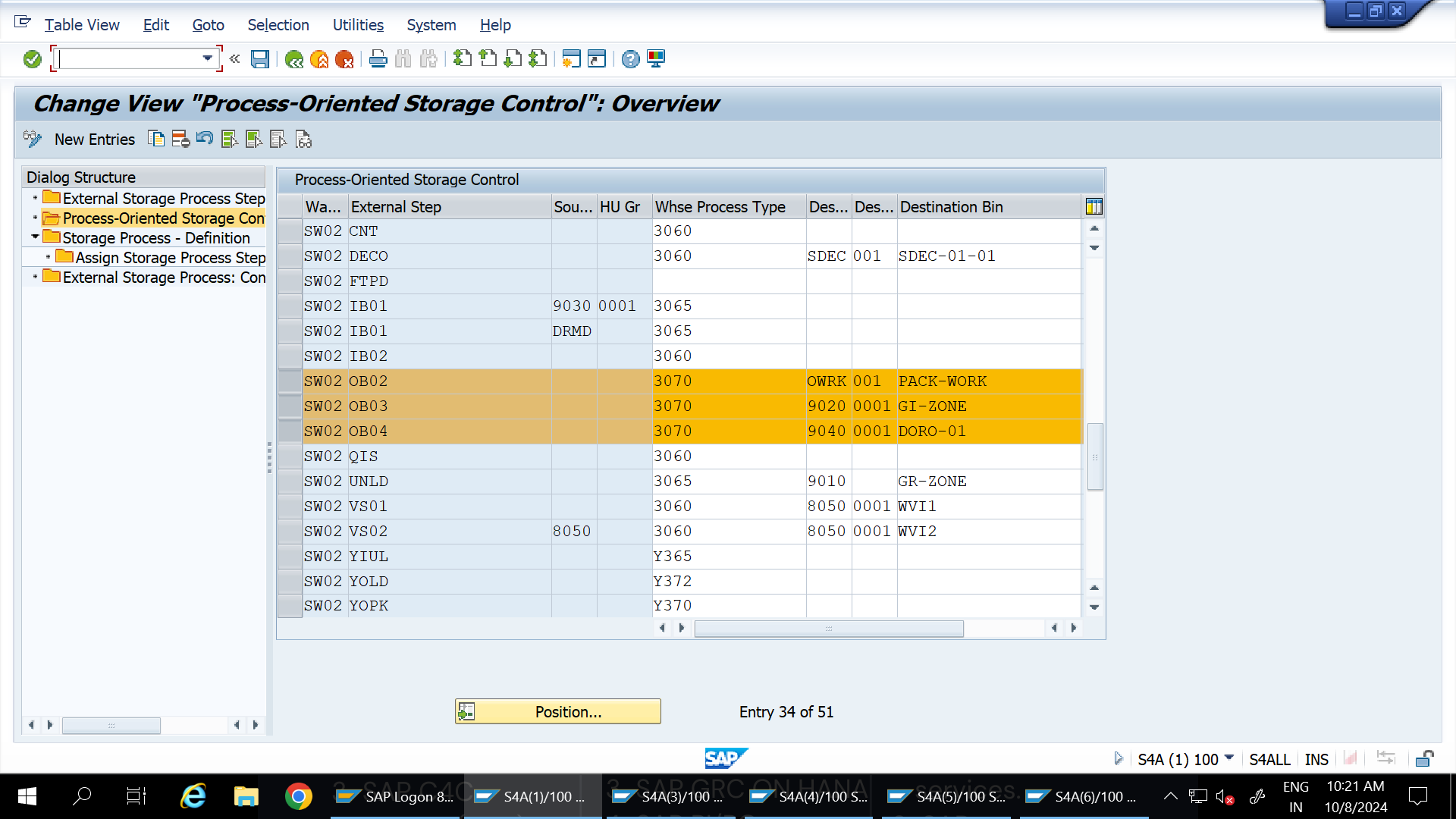
Step 3: Configure POSC for Cartonization
Define the following POSC (Process Oriented Storage Control) steps in OBSP:
OUB01: Pick
OUB02: Pack
OUB03: Staging (ST)
OUB04: Loading
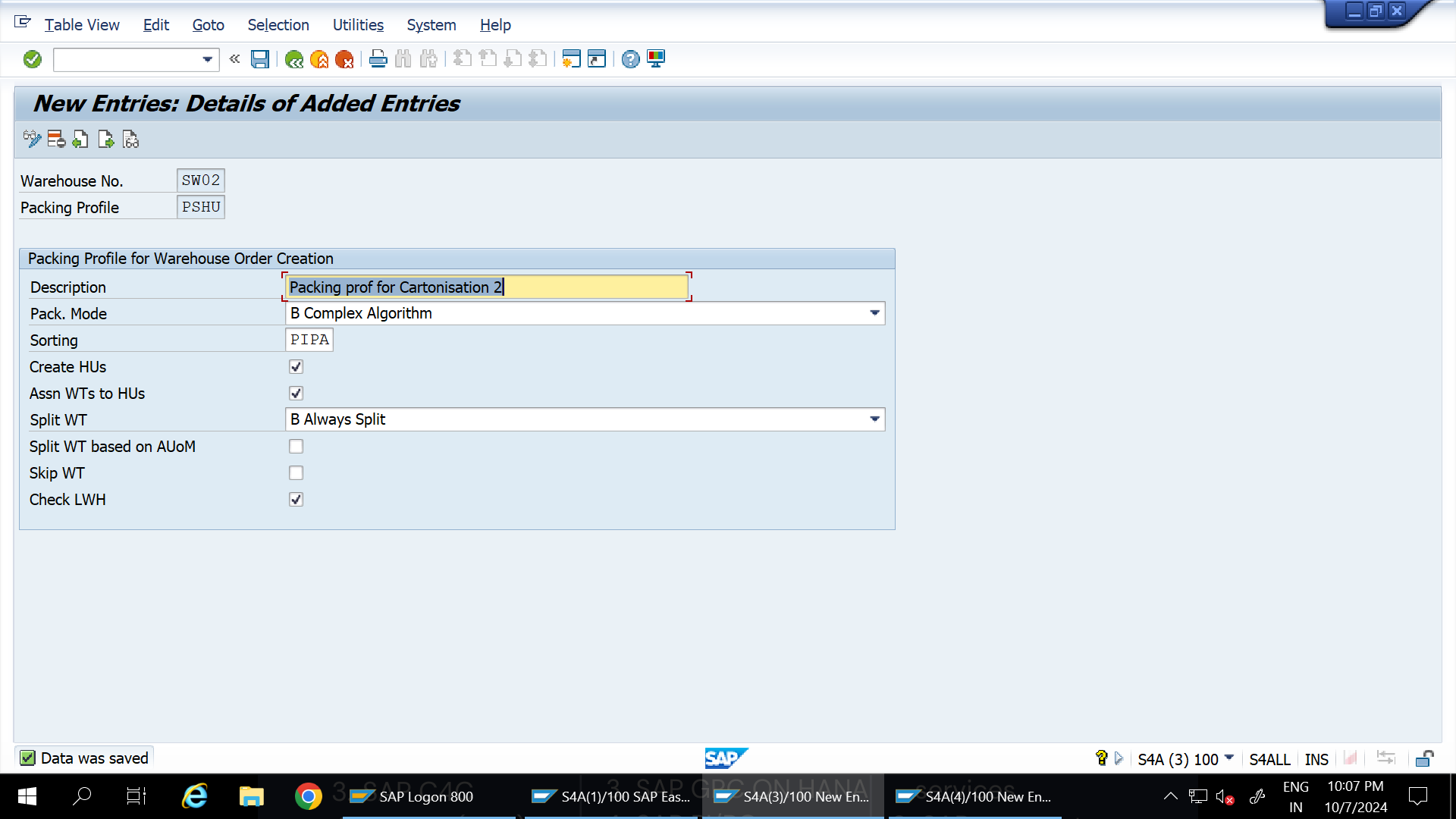
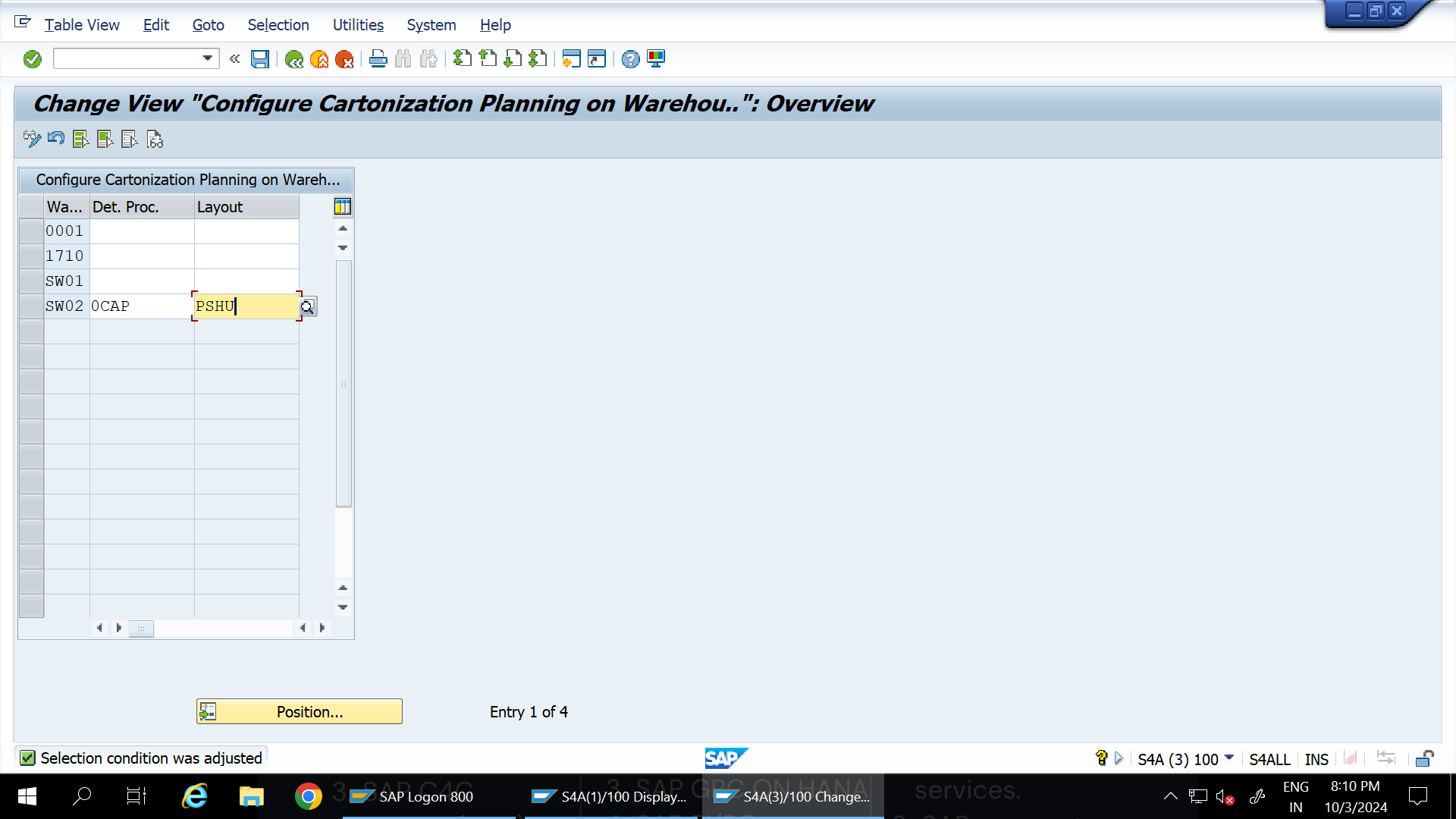
Step 4: Define Packaging Profile - PSHU
Set up a Packaging Profile (PSHU) to handle packaging units in the system.
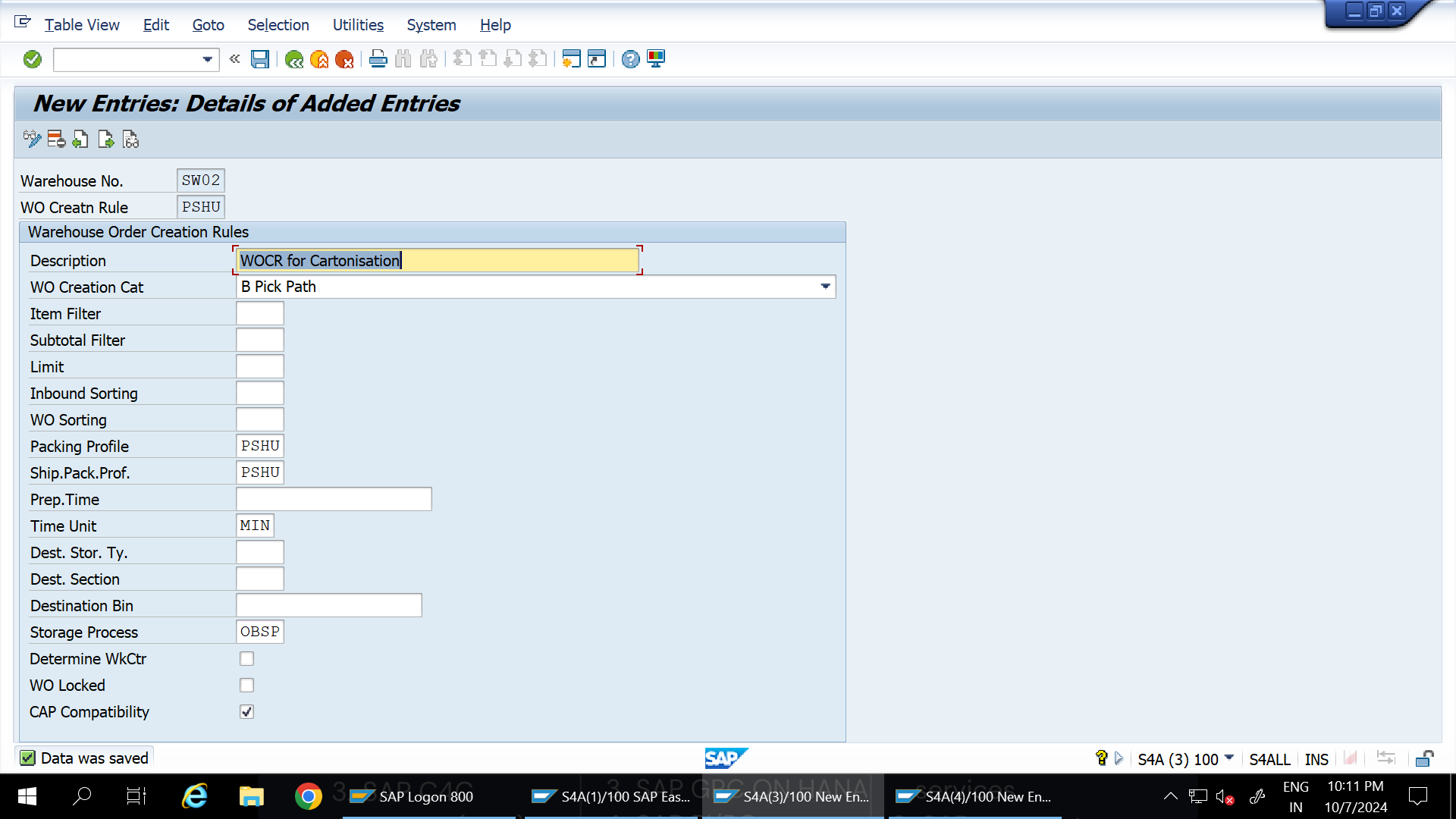
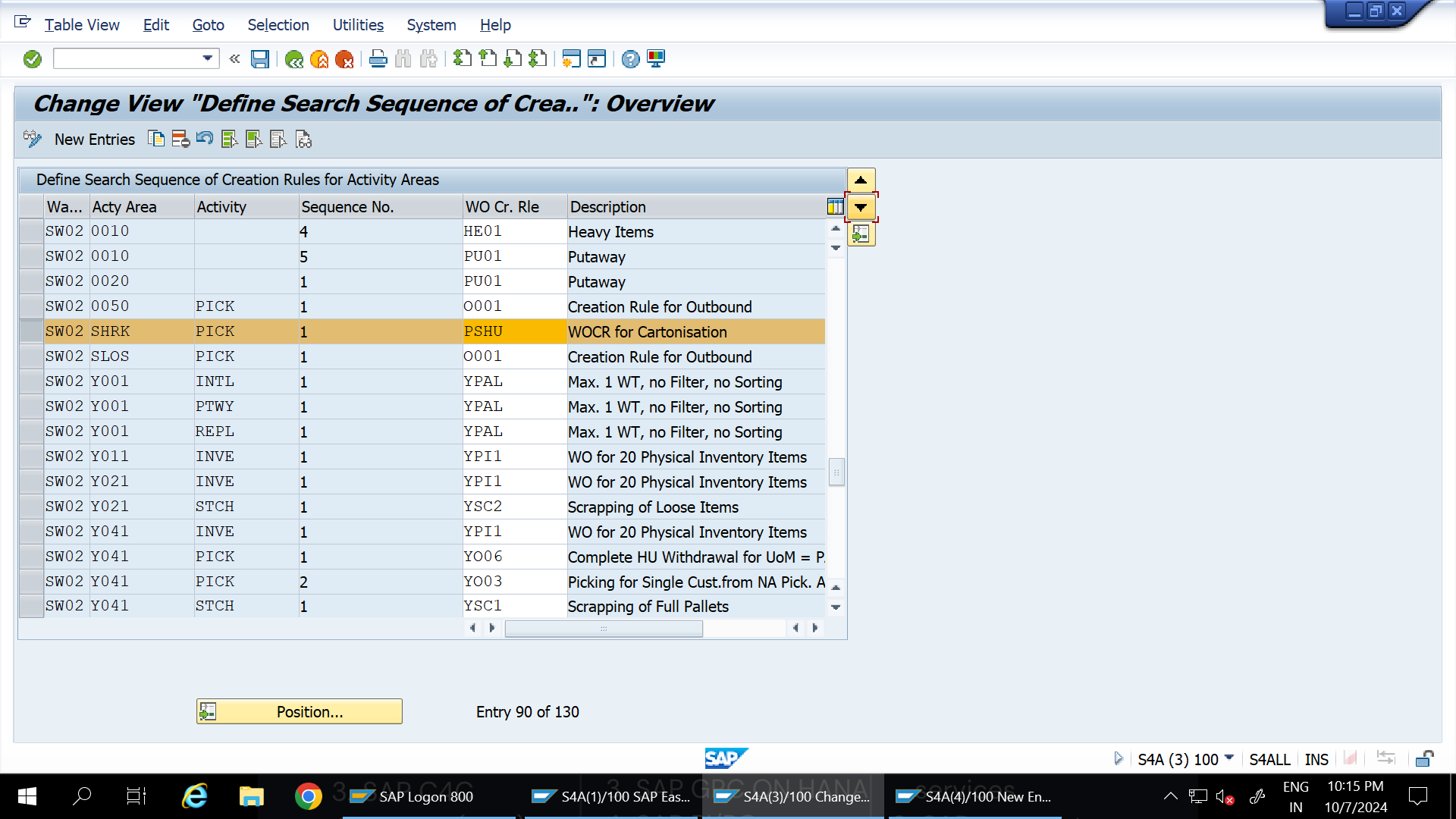
Step 5: Define WOCR for Activity Area
Define Work Order Creation Rules (WOCR) associated with the relevant activity areas.
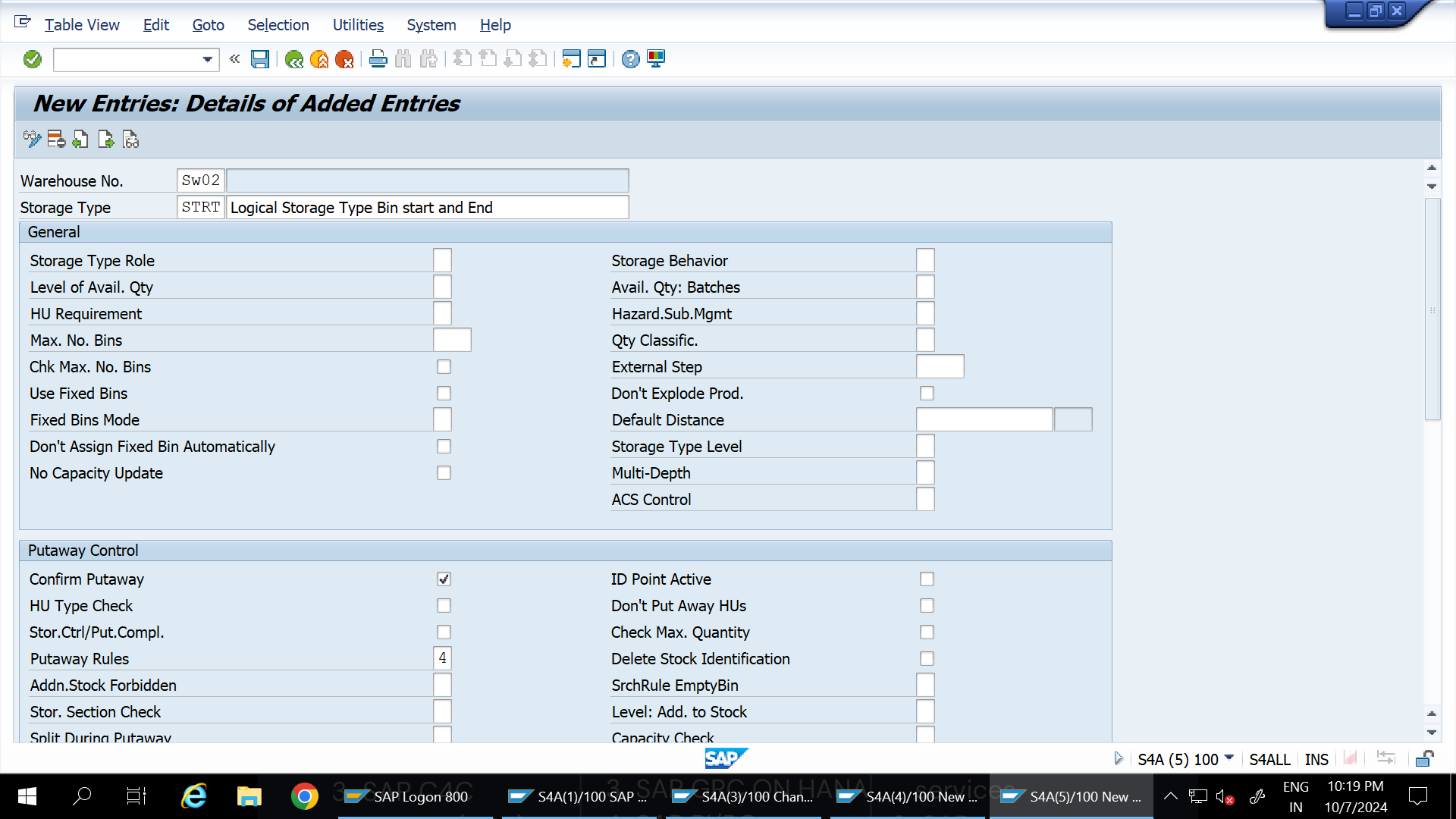
Step 6: Set Up Logical Bins and Generate Activity Area
Define start and end bins Storage type and bin using logical names (e.g., STRT, STRT-01-01).
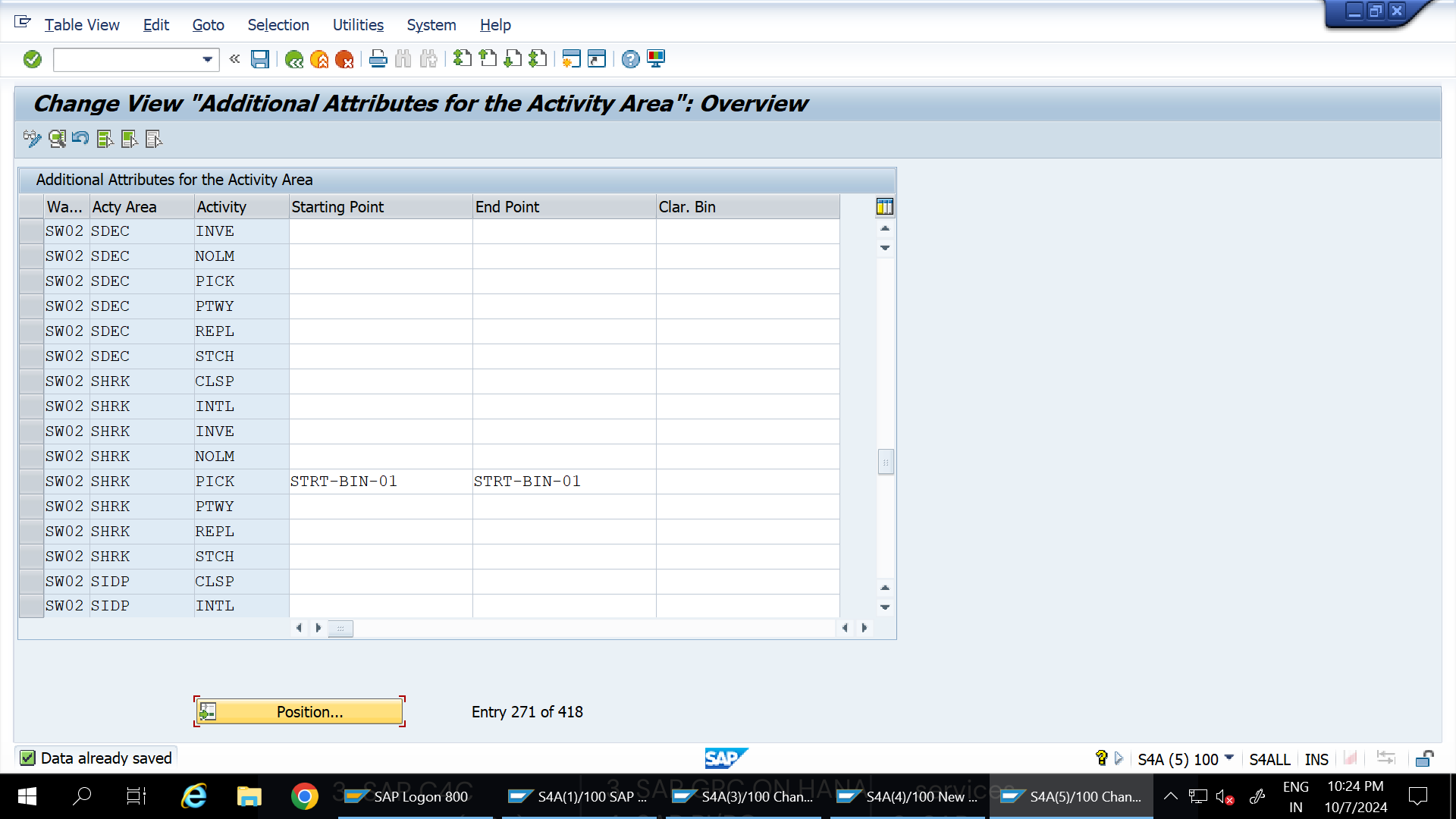
Go to /n/scwm/SBST for bin sorting.
Assign start and end bins to the activity area through /n/scwm/seba.
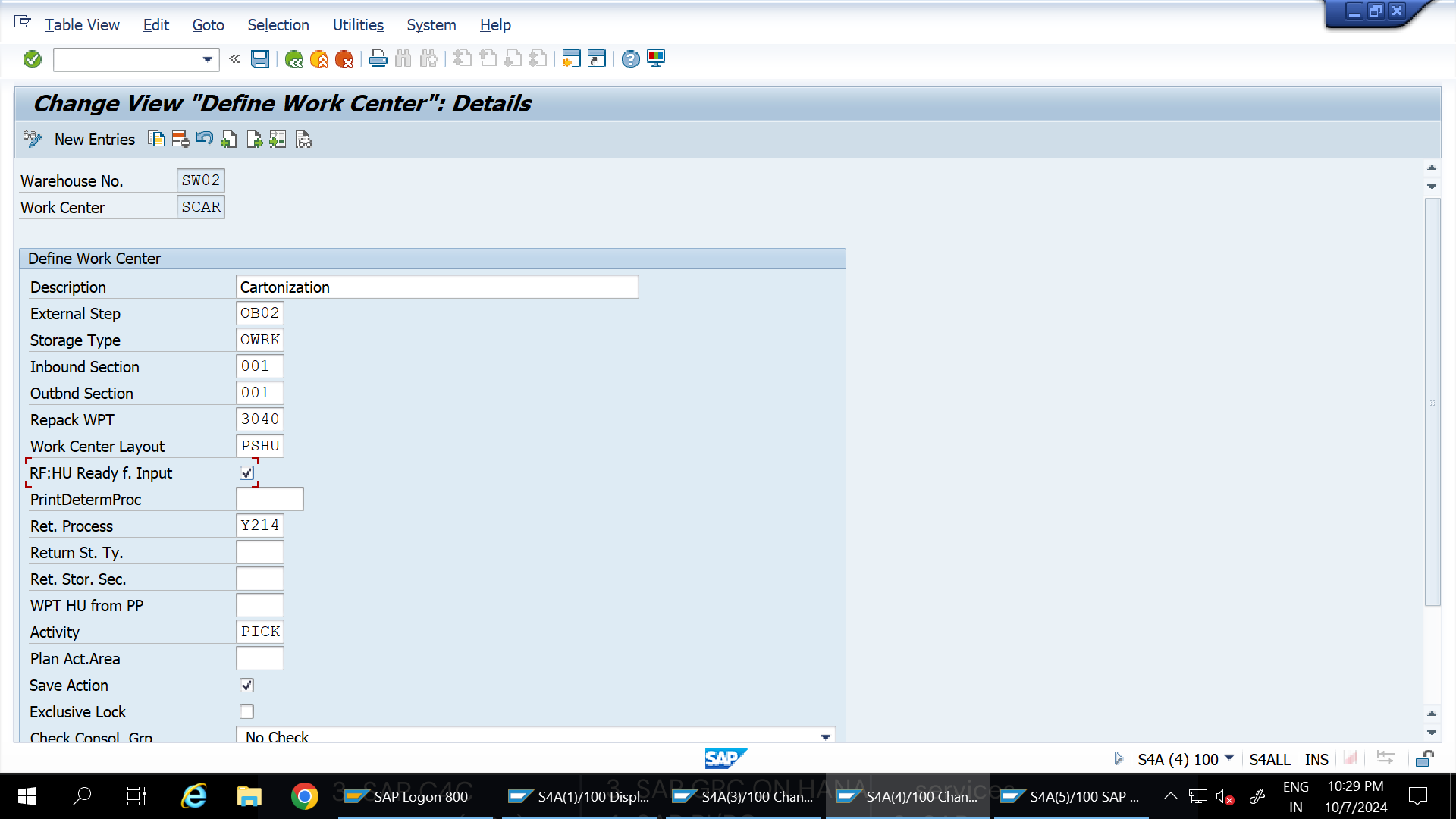
Step 7: Define Work Center
Create a work center, such as SCAR, in the system to manage packaging activities.
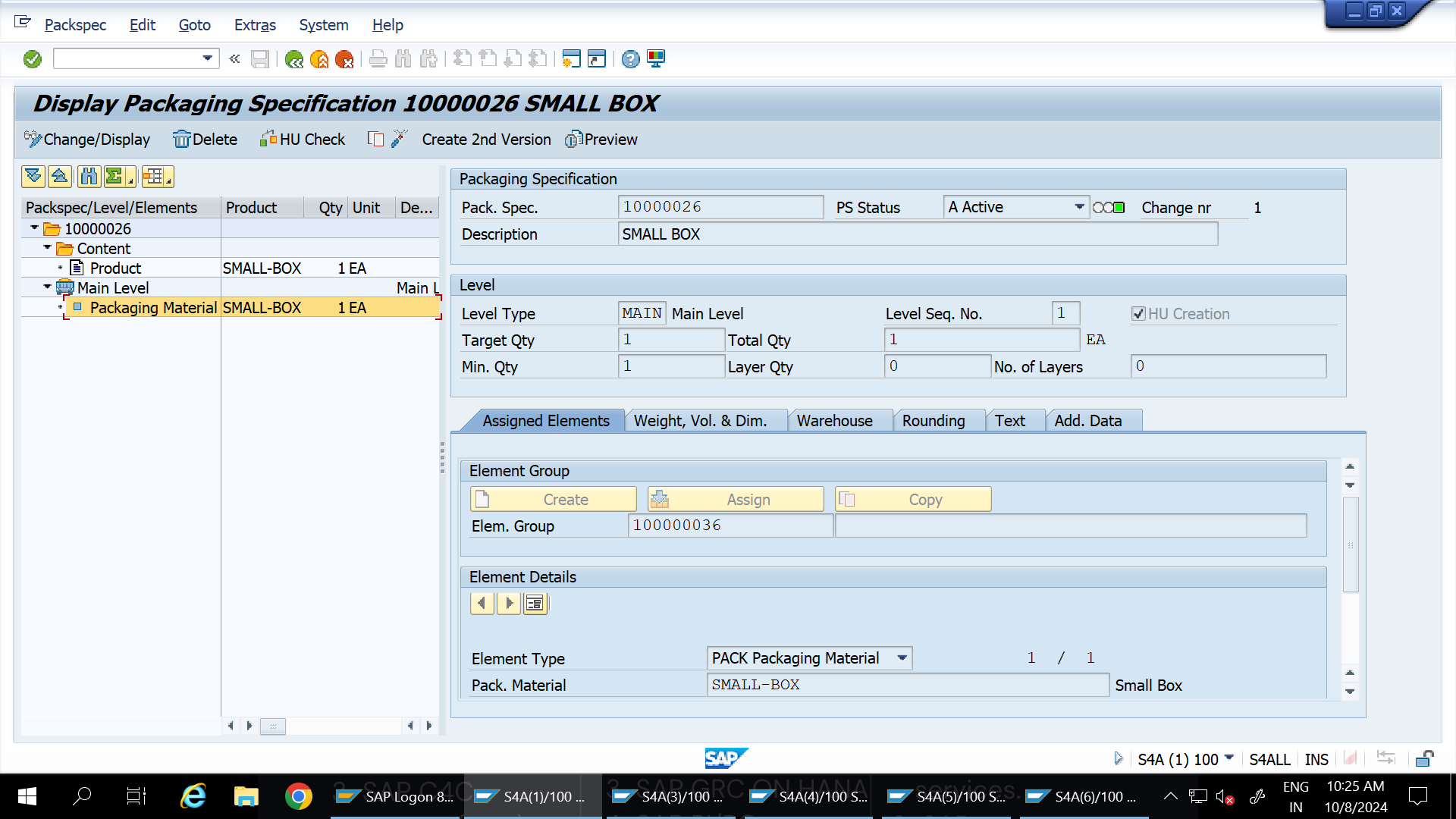
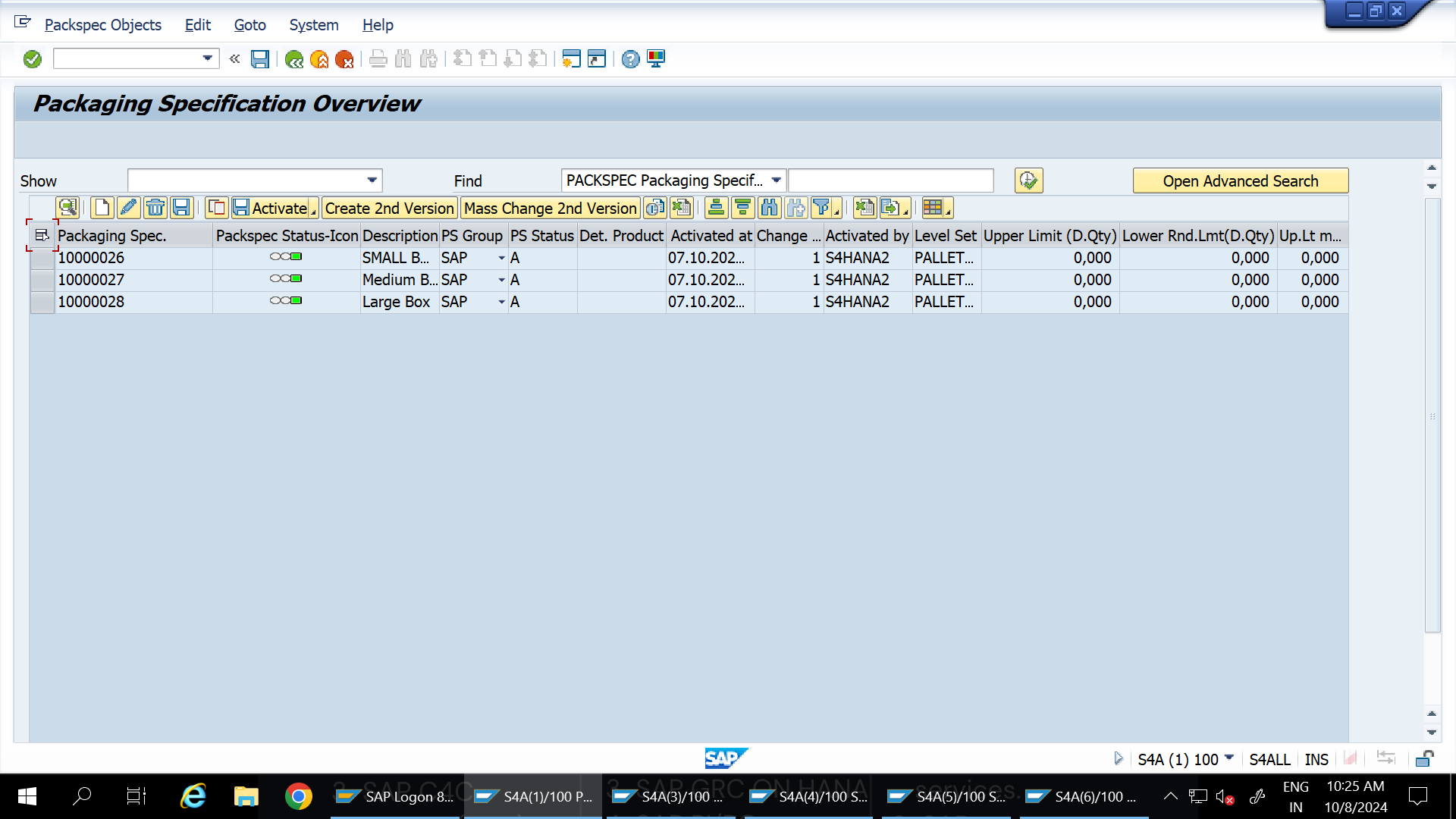
Step 8: Create Pack Specifications
Define pack specifications for each box size:
Transaction: /n/scwm/packspec
Specification Details:
Material
Length (cm)
Width (cm)
Height (cm)
Weight (Kg)
Volume (cm³)
Pack Spec
Small Box
10
10
4.5
0.2
450
10000026
Medium Box
10
10
6.5
0.3
650
10000027
Large Box
10
10
8.5
0.4
850
10000028
Repeat this step for LARGE-BOX and MID-BOX as needed.
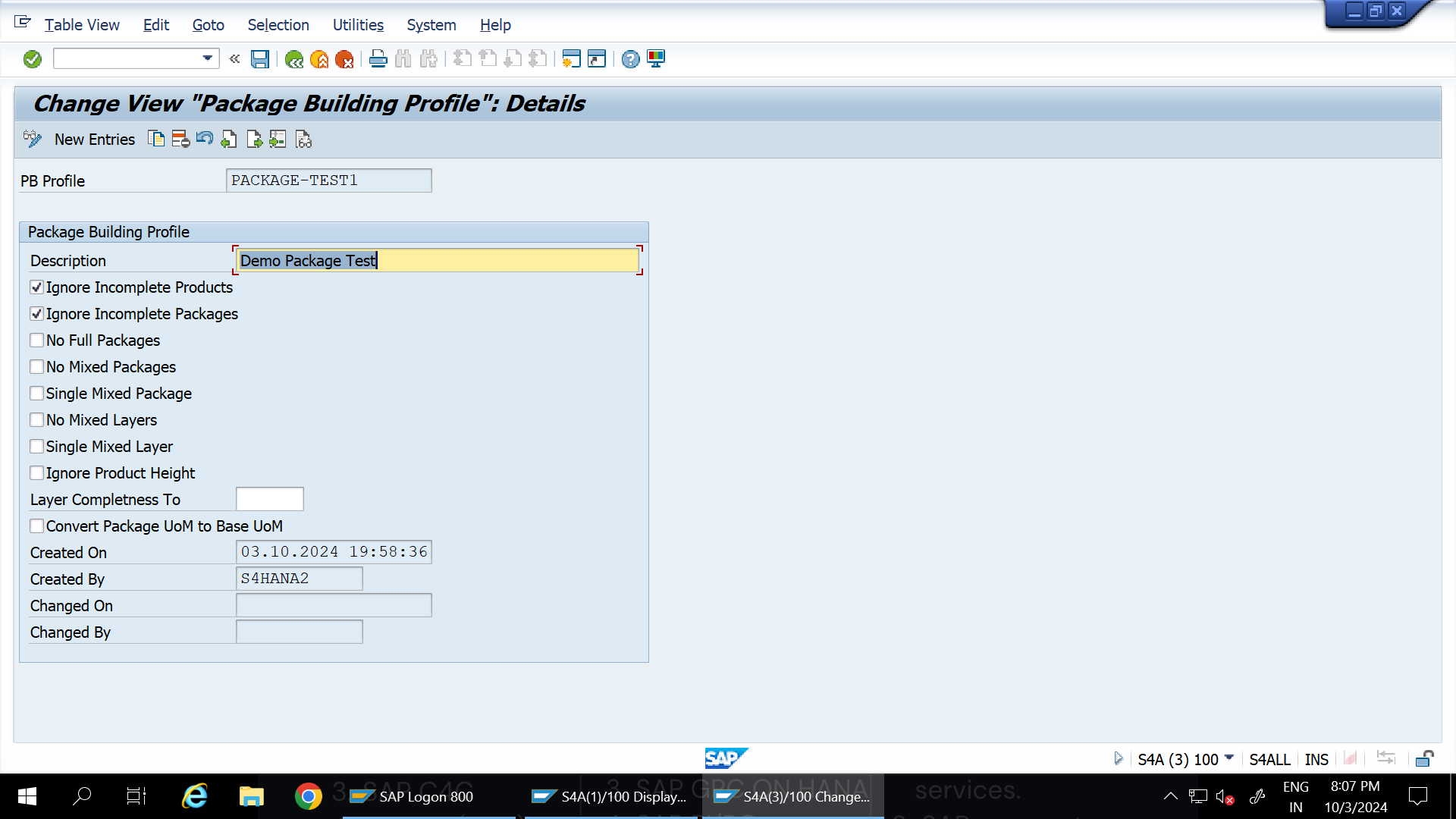
Step 9: Define Package Building Profile
Go to SPRO > SCMEWM > EWM > Goods Issue Process > Cartonization Planning > Define Package Building Profile to define the profile.
Step 10: Define Number Ranges for PSHU Identification
Configure number ranges for the identification of PSHU (Packing Handling Units) at the warehouse level.
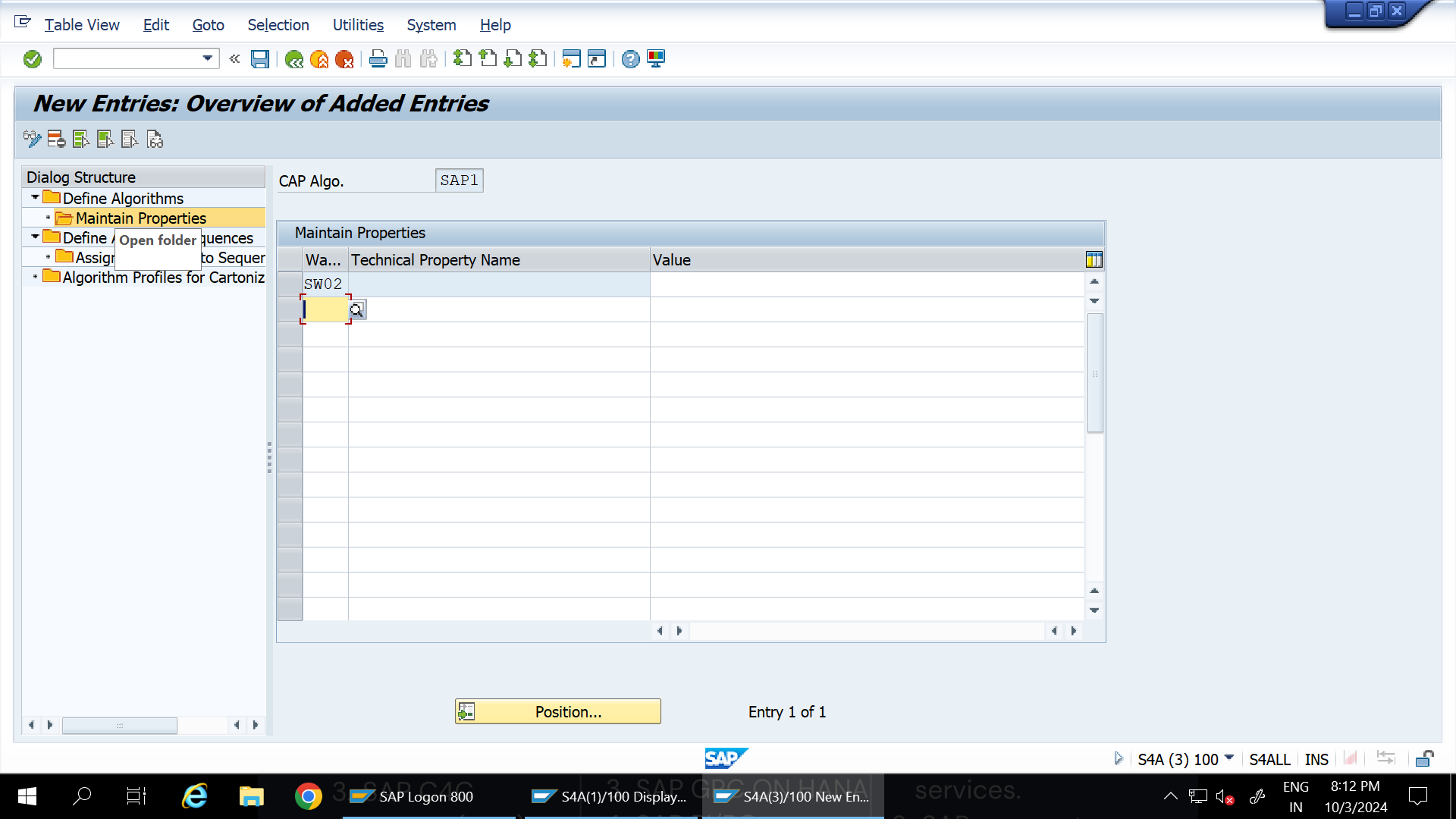
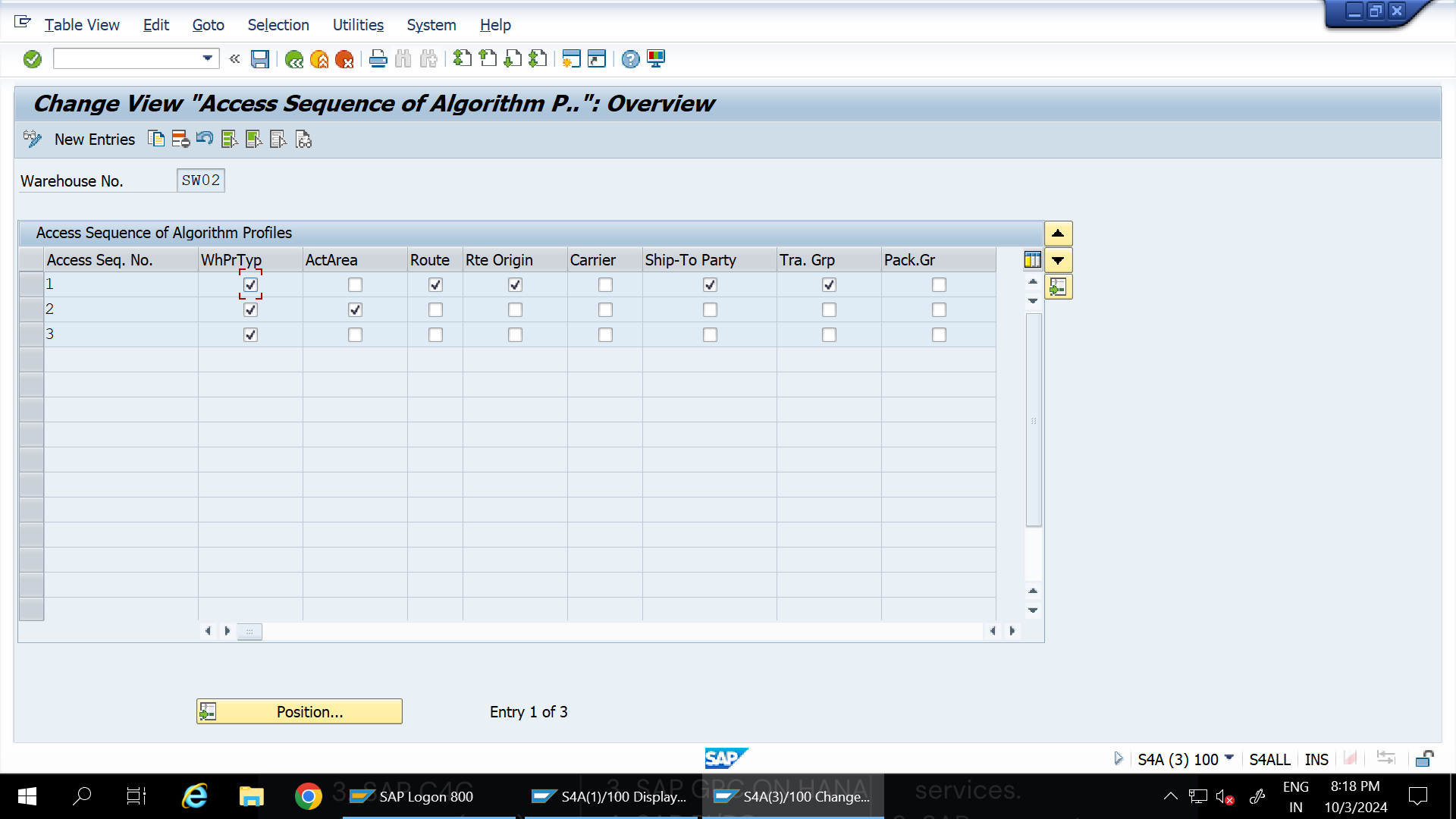
Step 11: Define Algorithm Profiles for Cartonization Planning
Set up algorithm profiles for cartonization planning. If using the standard profile, only maintain your warehouse number without assigning additional values. and Define access sequence of algorithm profile
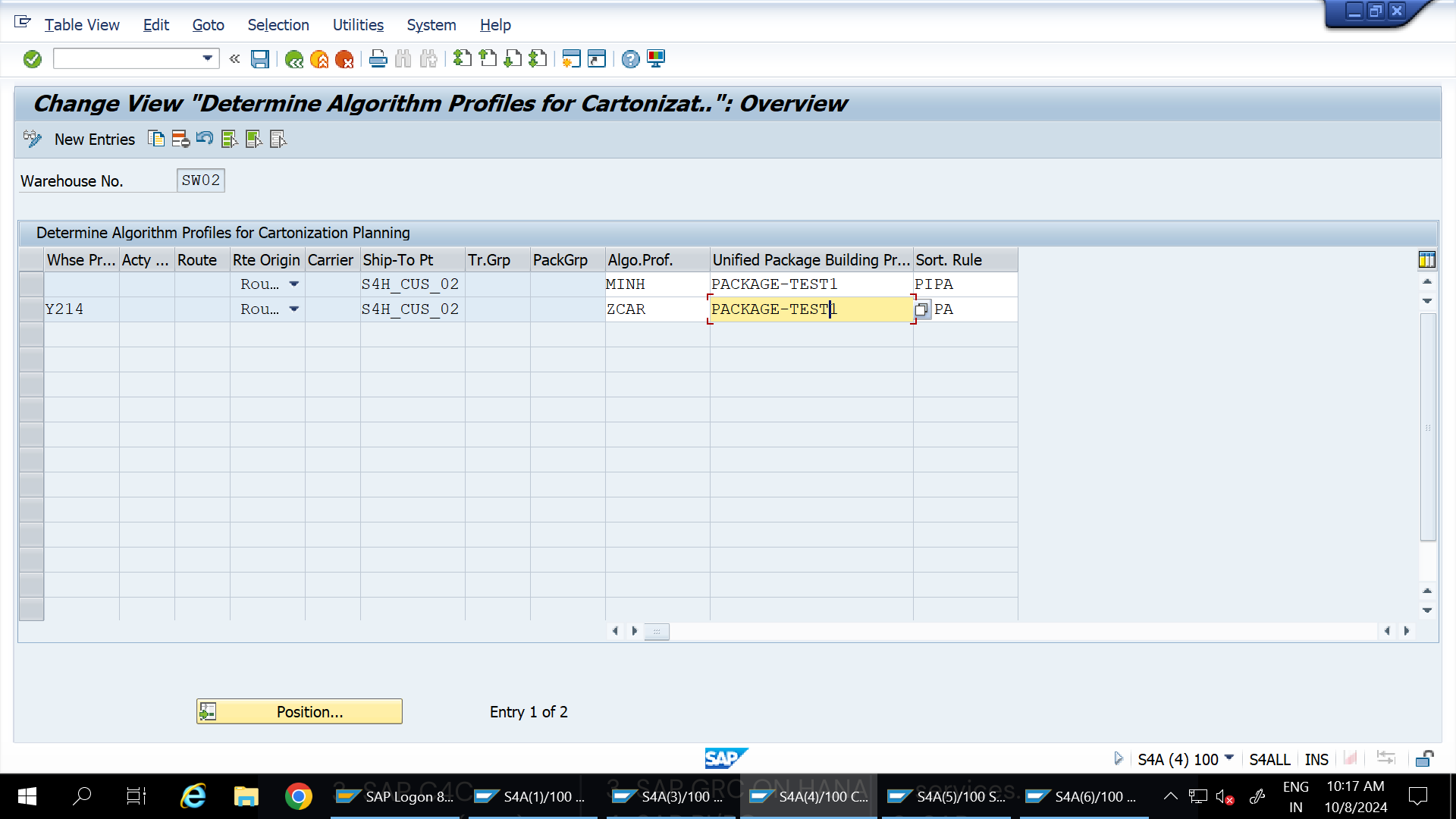
Step 12: Determine Algorithm Profiles
Go to /n/scwm/cappdet to assign algorithm profiles relevant to cartonization.
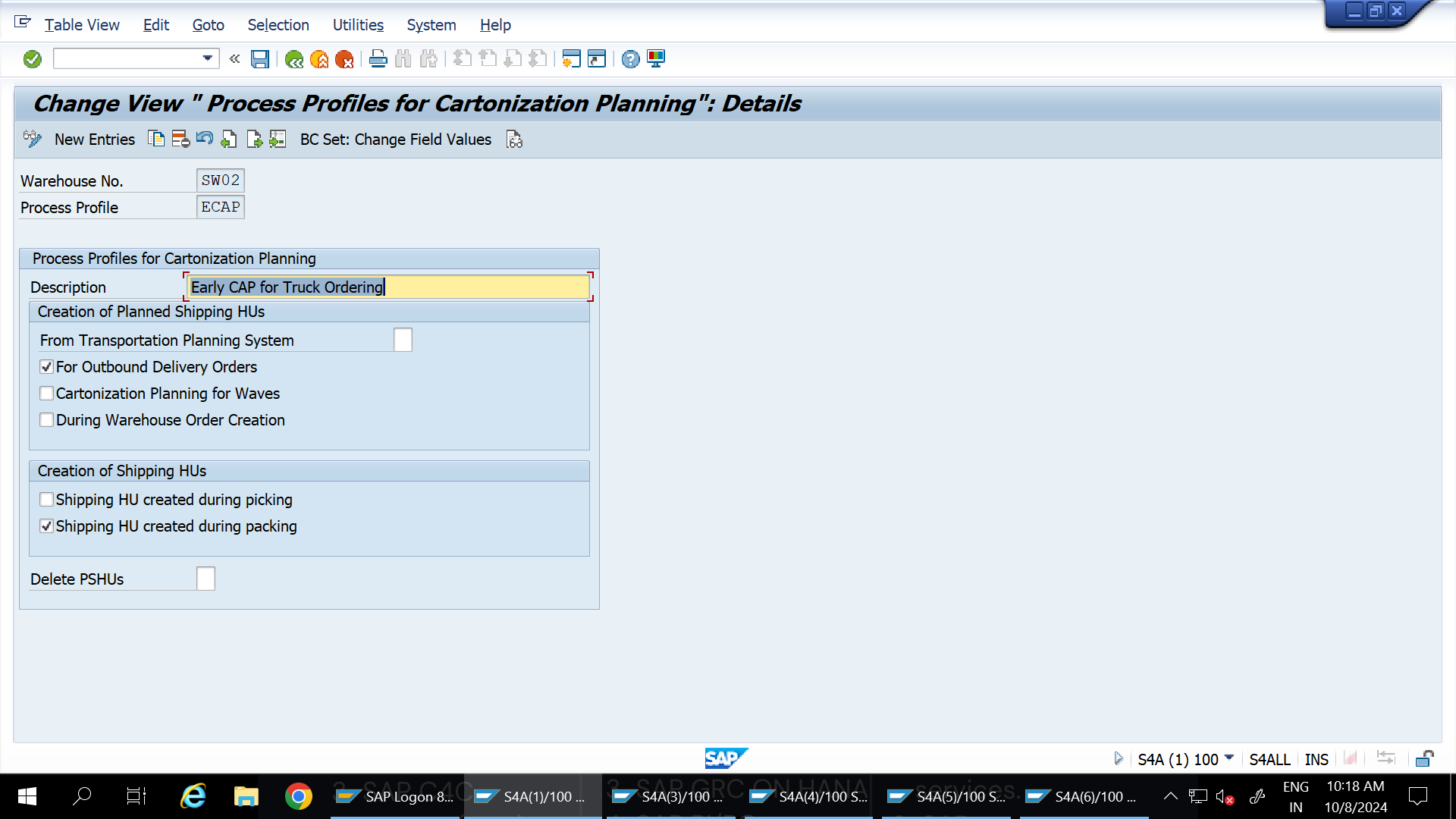
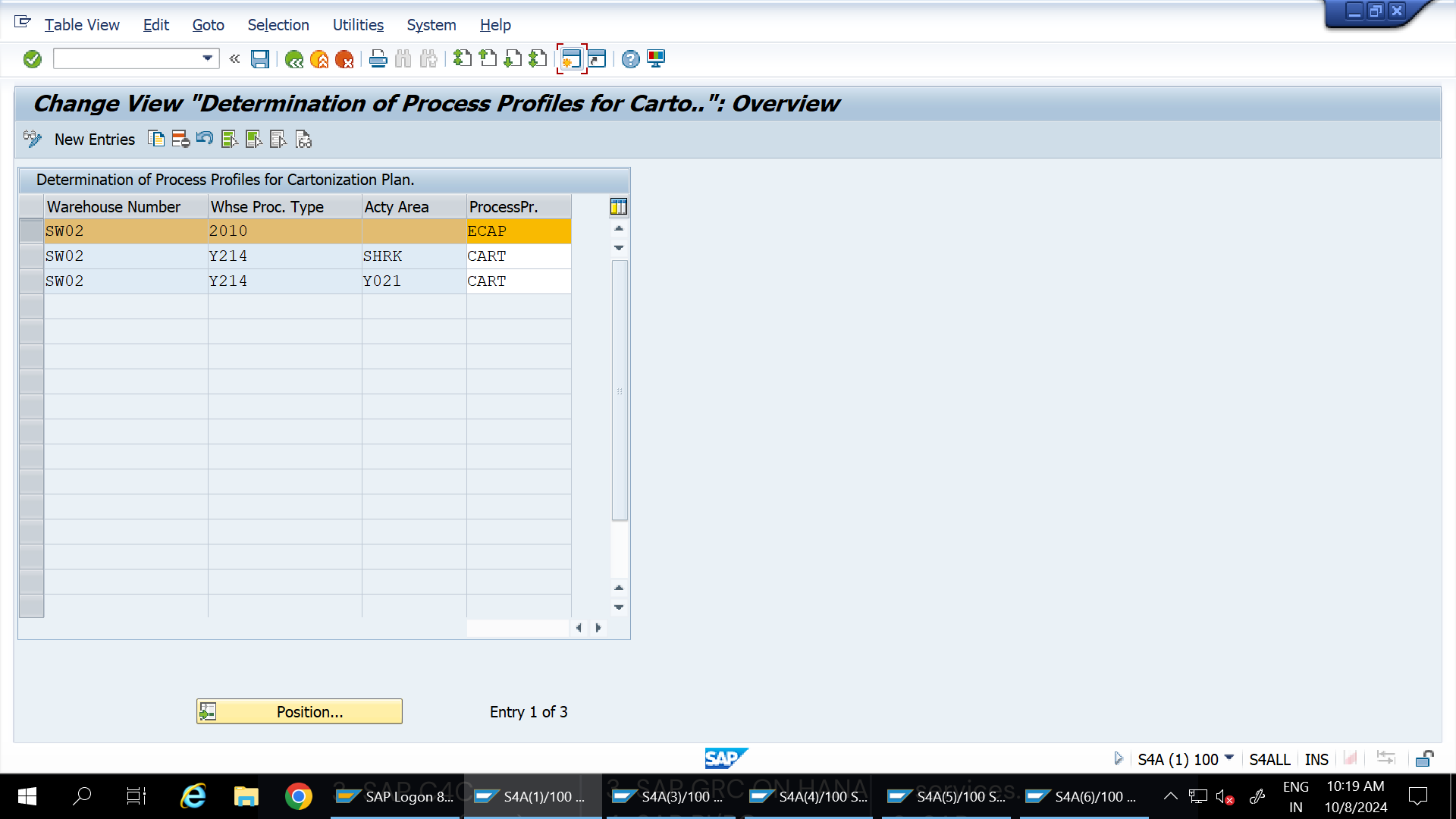
Step 13: Define and Determine Process Profiles
Define process profiles to manage the cartonization process, then determine their use in the SAP EWM system.
Step 14: Configure Cartonization Steps in POSC
Set up cartonization steps in POSC using OBSP to ensure efficient cartonization in the packing process.
Step 15: Generate Purchase Order and Create Inbound Delivery
Generate a Purchase Order (PO).
Create an inbound delivery for the materials created.
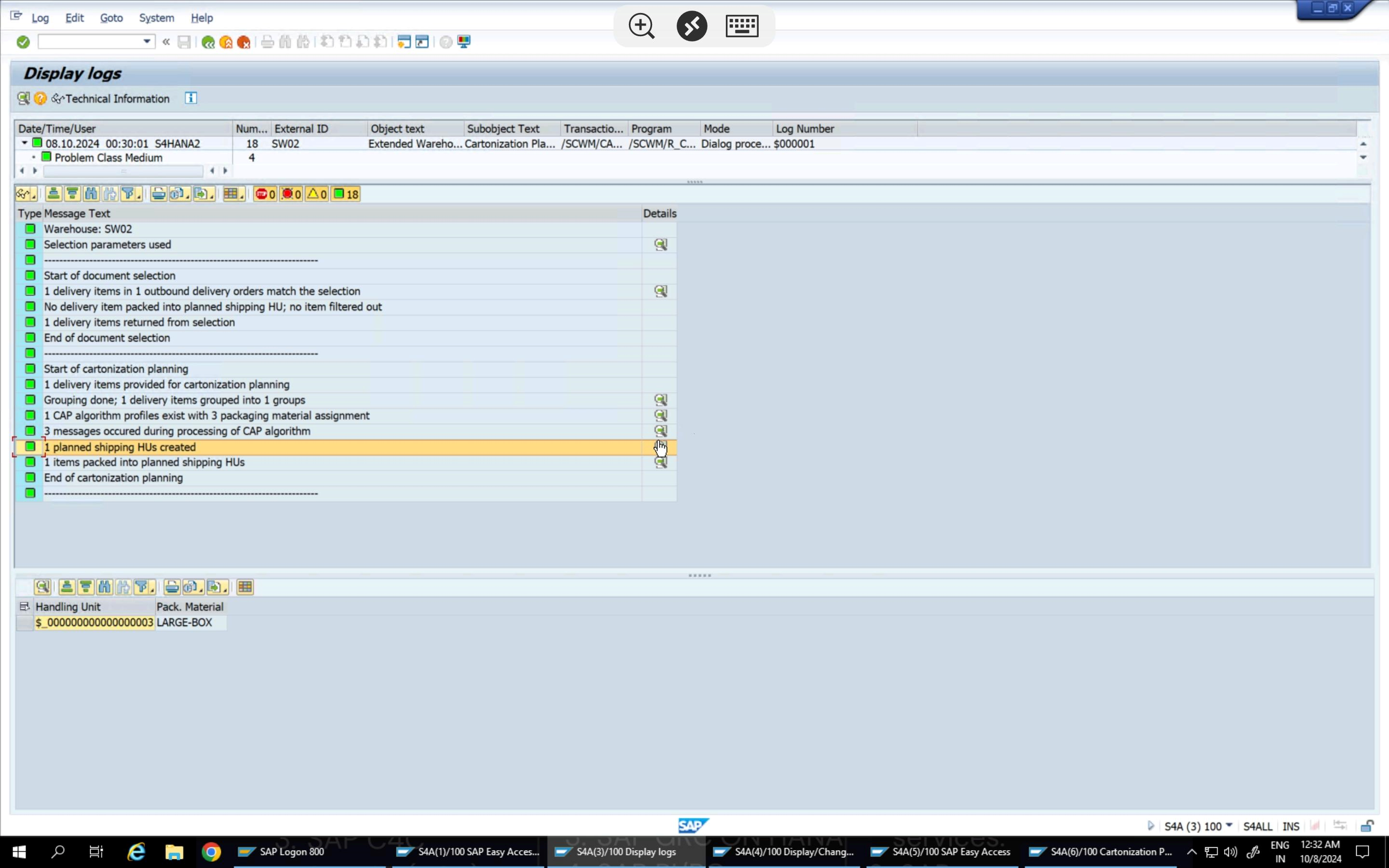
Go to /n/scwm/Capdlv.Verify that the system proposes the planned Handling Unit (HU) based on cartonization settings.
This guide combines steps from various sources to save you time setting up Kodi with Fen Light, CocoScrapers, and the Fentastic Skin. Special thanks to the Kodi team and developers of these add-ons. Download Kodi: Install the native application for your device from the official…
Important: This Stremio configuration guide is for streaming movies/TV on Windows, Mac, Android, FireOS (including Fire Stick and Fire TV), Linux, AndroidTV, and Steam Deck. It does not support iOS devices (iPhone, iPad). If you're an iOS user, this guide isn't applicable. To complete this…